
In this article, we go through how to delete a post category. It’s as simple as creating and editing a category.
Unlike WordPress pages, once you delete a category, it will be removed from your website permanently. So, be careful – there’s no undo button.
First, go to the page containing the categories – Posts > Categories.
Then, click on the Delete link below the category you wish to delete.
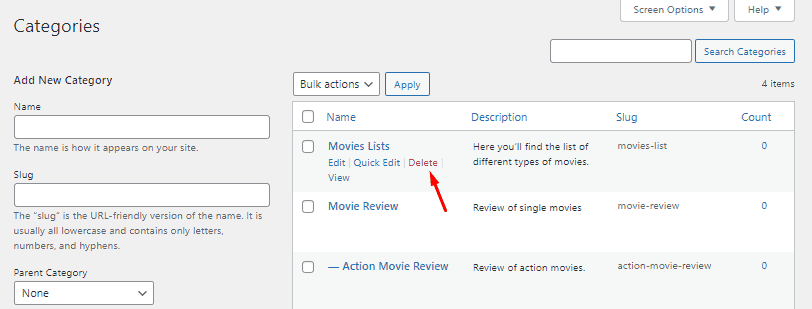
A dialog box will appear asking for confirmation to delete. Just click on OK to delete. To stop the delete, click on Cancel.

Deleting Categories in Bulk
If you have a lot of categories to delete, then bulk delete is a nifty feature that will come in handy.
With bulk delete, you can select multiple categories and delete them all at once.
Select the categories you want to delete by clicking on the checkbox ahead of them. After that, click on the Bulk actions dropdown and select Delete. And then, click on Apply.
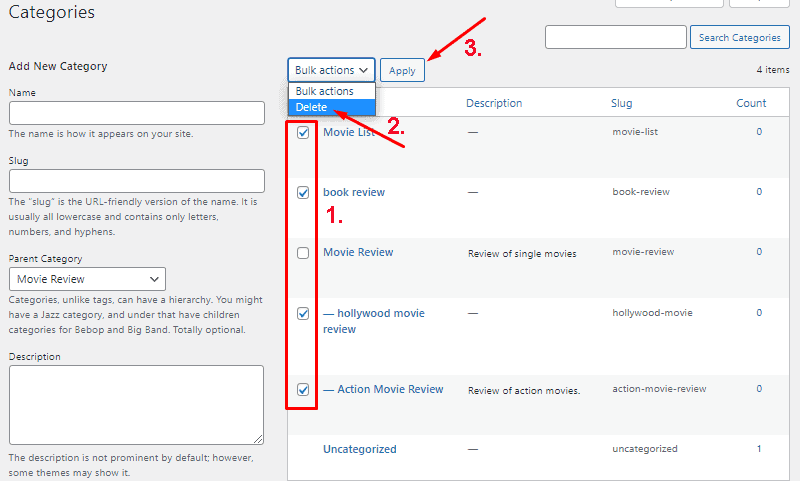
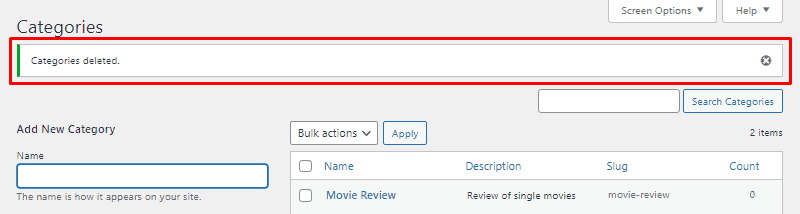
After done, a message will appear notifying the deletion of the categories.